INSTRUCTION

PLEASE CHOOSE YOUR DEVICE

ANDROID

IOS

WINDOWS

MAC

Lightroom Mobile (IOS)

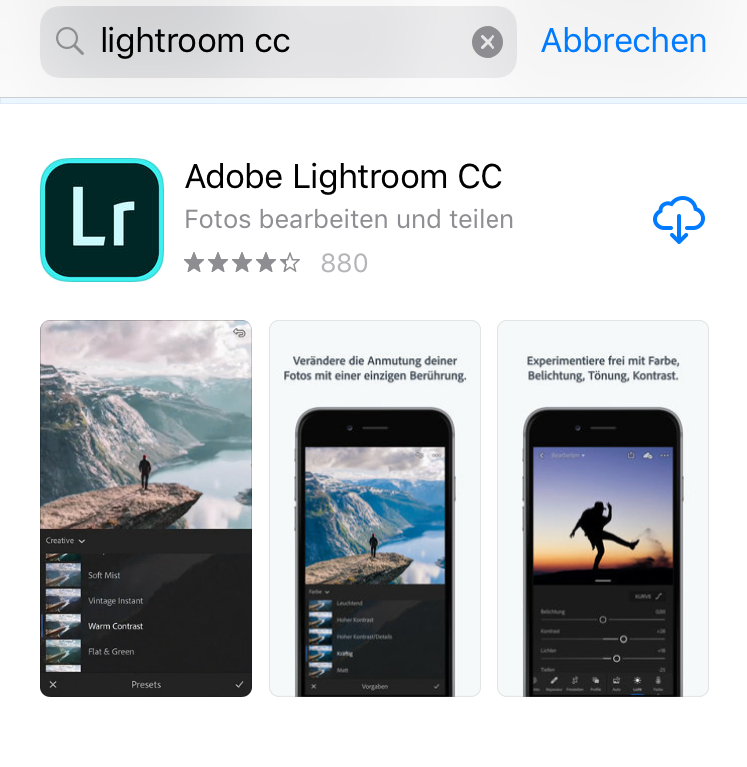
1. Take your phone and install the Lightroom Mobile App.

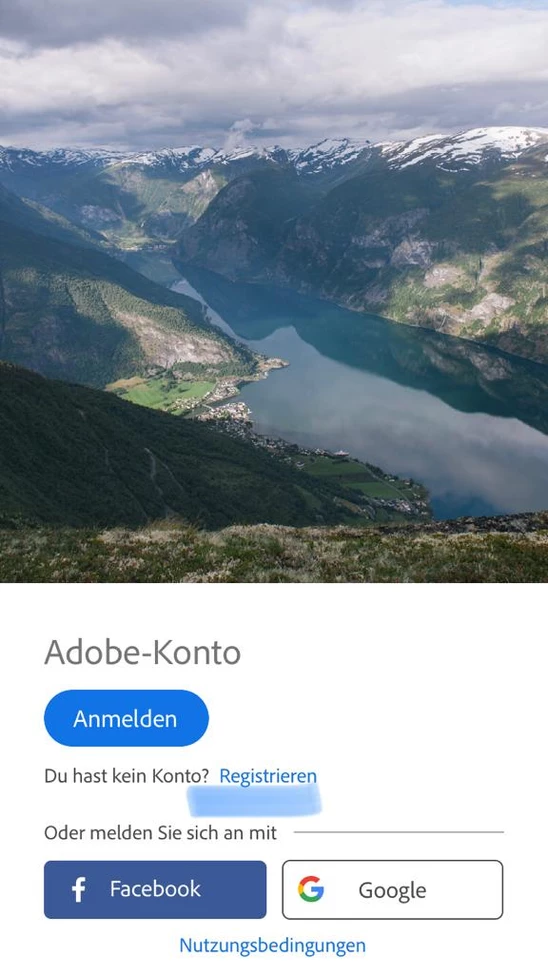
2. sign in to Adobe Lightroom CC and create an account.

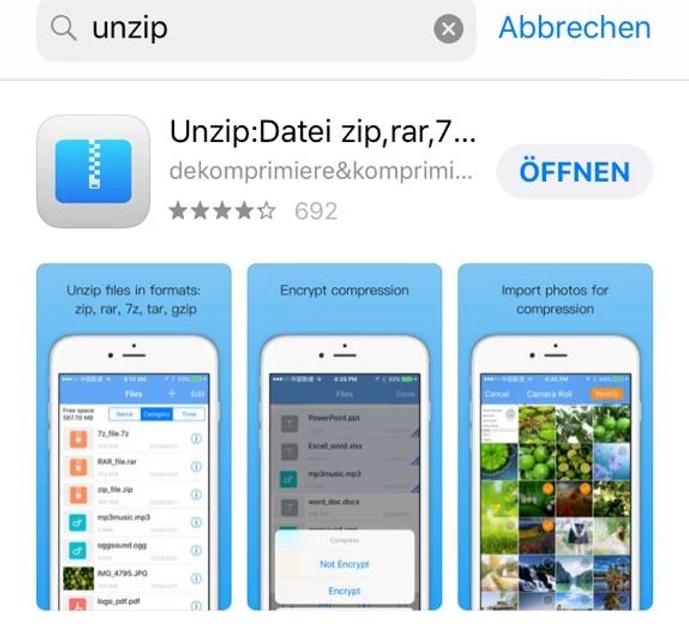
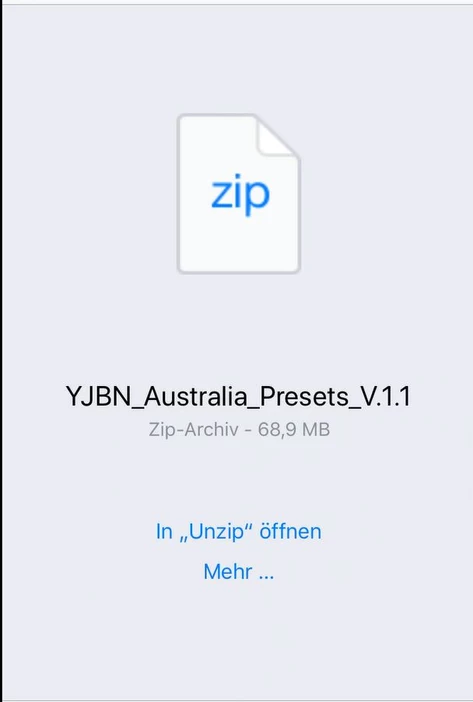
3. To unpack our YJBN presets on your IOS device, you need a free or paid app, which you can use to extract ZIP files. We recommend the free app: : Unzip

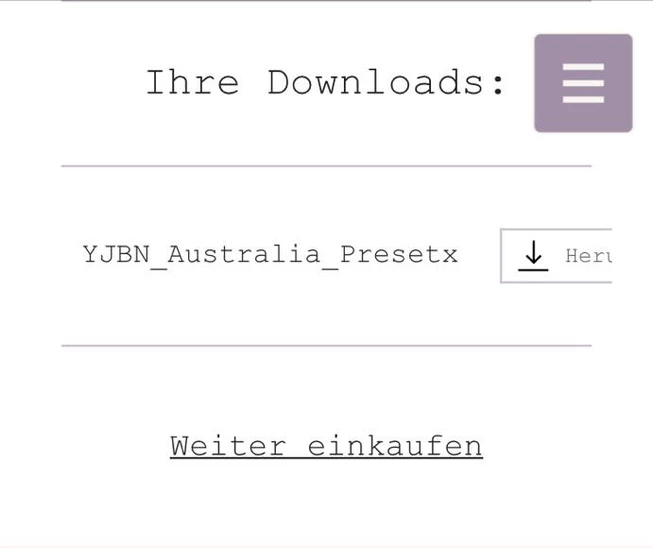
4. When you order a YJBN Package, you will receive an email from us with a download link.

5. please open the File with your downloaded app in step 3. if the app is not displayed directly, please click on "More...". and then select the app you have already installed.

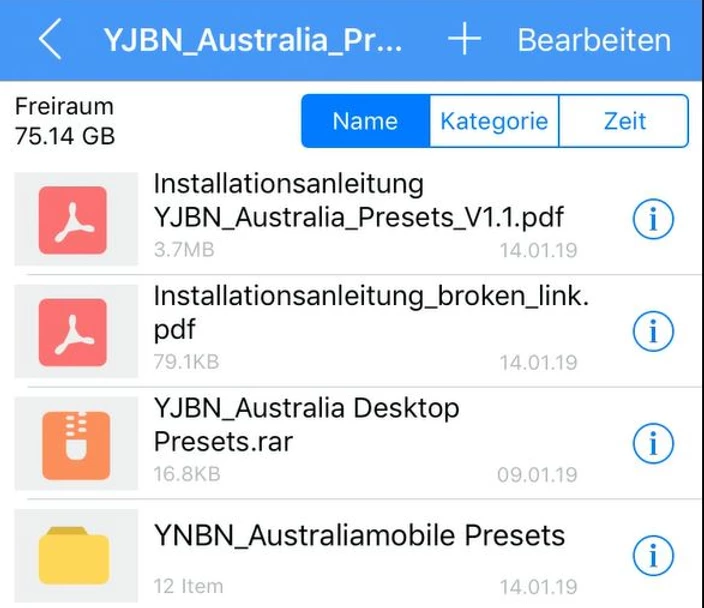
6. after unpacking you will see a new folder (Preset YJBN). Click on this folder to open it and press on YJBN_ [YOURRPRODUCT] mobile presets. *Australiamobile_Presets is just an example

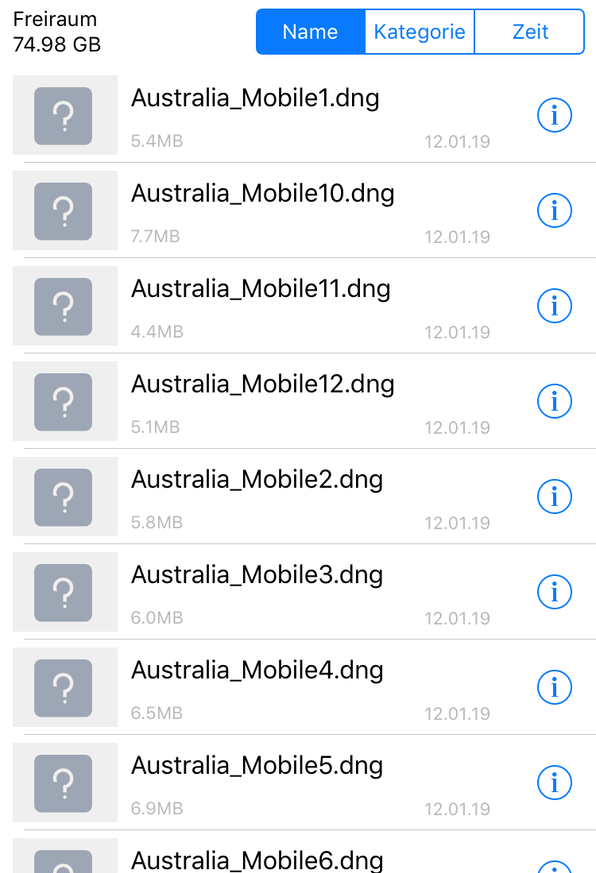
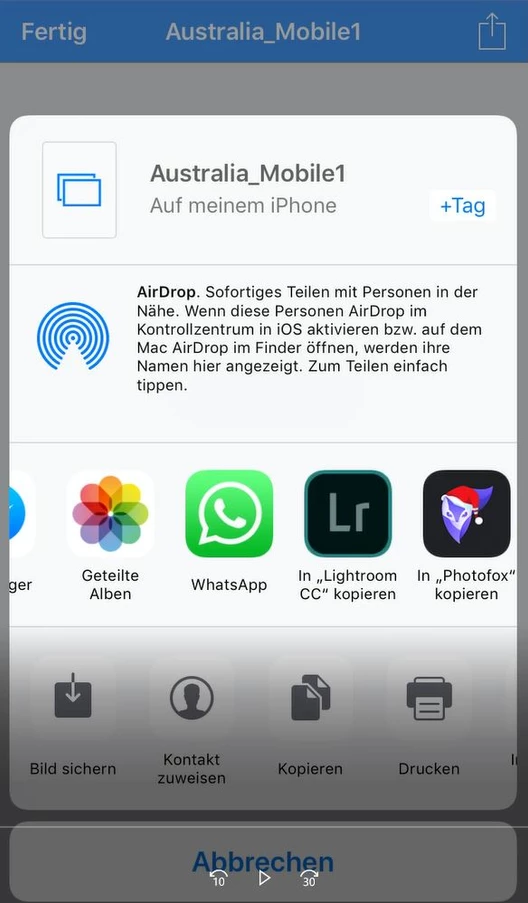
7. choose all files and click "Open in".
  • Then click "Copy to Lightroom Mobile CC" in the new dialog.
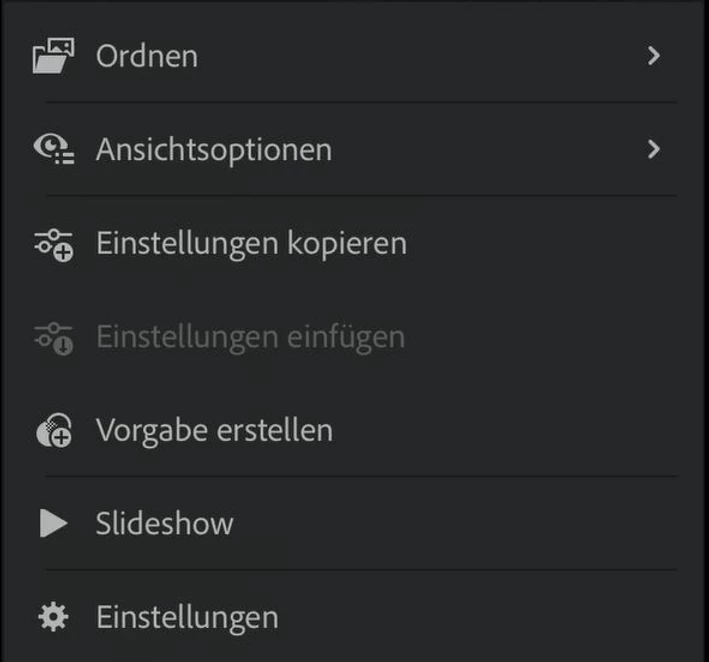
  • 8. click on the three dots in the upper right corner and select afterwards in the new window "Create Preset".

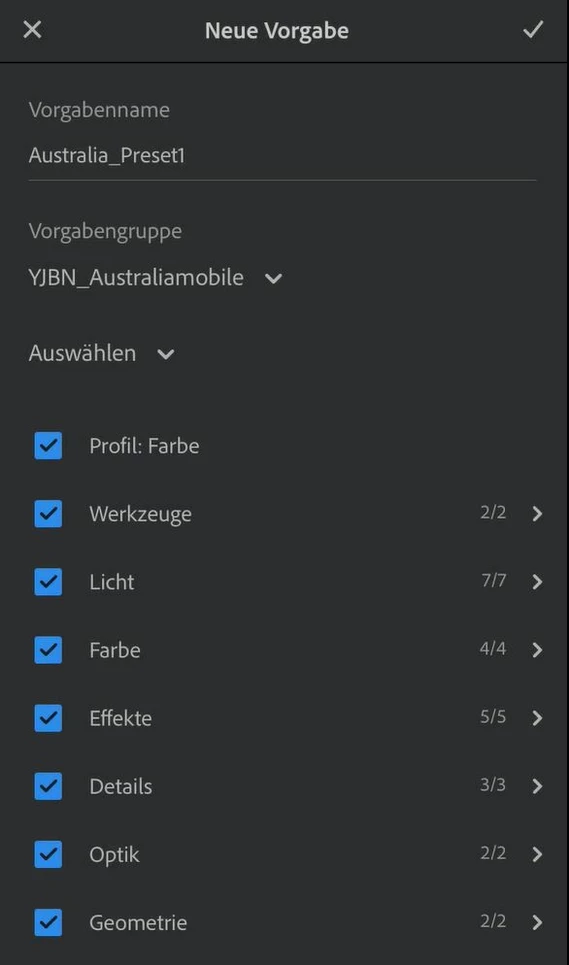
    9. please choose a new default name e.g. Australia_Preset1.
  • Now create a new presets group (e.g. YJBN_Australiamobile) This step only needs to be done once, if a folder for the presets has already been created, you can use it for importing further presets.
  • select all 8 effects. then save the created preset.
  • 10. Repeat this step for all other presets you want to import.

    Applying Presets for your Pictures

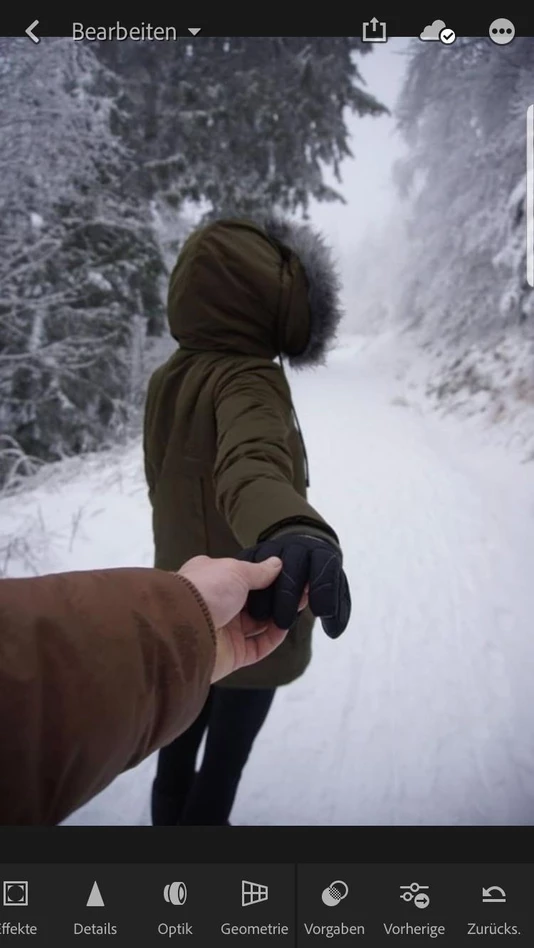
    1. click on the ‘Add Image’ icon and select the photo you
    want to edit.

    2. swipe the bottom toolbar all the way to the right and click
    the “Preferences” icon

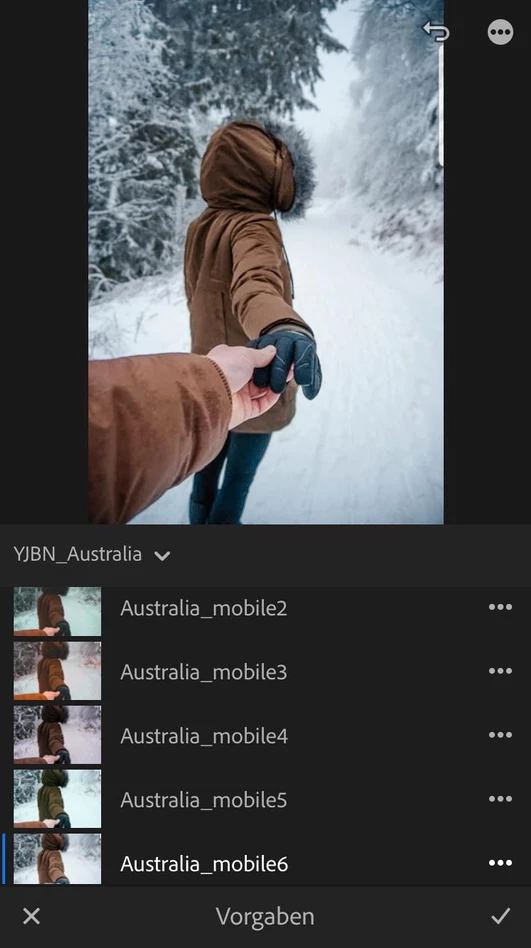
    3. change “Colour” and choose your preset group

    4. select any of the added presets.

    ​ 5. confirm your selection with the checked icon.

    ​ 6. repeat this step for all other presets you want to import.

    Adjust the settings:

    Often you have to adjust the filters to the light conditions of
    the image or experiment even further until you have found
    your own look.

    Basic settings:
    The first thing you should adjust after using the filter in
    Lightroom is the exposure, as well as the temperature. Each
    image is shot under different lighting conditions. One

    Exposure adjustment works wonders, and even the slightest
    control of temperature creates big changes in your
    snapshots.

    Color:
    You can also control the colors on your photos. The sky
    should be bluer and brighter? No problem. Just play around
    with the controls until you get the perfect result. Small tip for
    the perfect skin color: adjust the luminance of the color
    orange.

    ​ Have fun trying out our filters & don’t forget to set the
    hashtag #YJBNPRESETS,#YJBN so we can support you on
    Instagram.

    Lightroom Mobile (Android)

    1. Take your phone and install the Lightroom Mobile App.

    2. sign in to Adobe Lightroom CC and create an account.

    3. To unpack our YJBN presets on your Android device, you need a free or paid app, which you can use to extract ZIP files.
    We recommend the free app: : RAR

    4. When you order a YJBN Package, you will receive an email from us with a download link.

    5. please open the File with your downloaded app in step 3. if the app is not displayed directly, please click on "More...". and then select the app you have already installed.

    6. after unpacking you will see a new folder (Preset YJBN). Click on this folder to open it and press on YJBN_[YOURRPRODUCT]mobile presets. *Australiamobile_Presets is just an example

    7. choose all files and click "Open in".
  • Then click "Copy to Lightroom Mobile CC" in the new dialog.
  • 8. click on the three dots in the upper right corner and select afterwards in the new window "Create Preset".

    9. please choose a new default name e.g. Australia_Preset1.
  • Now create a new presets group (e.g. YJBN_Australiamobile) This step only needs to be done once, if a folder for the presets has already been created, you can use it for importing further presets.
  • select all 8 effects. then save the created preset.
  • 10. Repeat this step for all other presets you want to import.

    Applying Presets for your Pictures

    1. click on the ‘Add Image’ icon and select the photo you
    want to edit.

    2. swipe the bottom toolbar all the way to the right and click
    the “Preferences” icon

    3. change “Colour” and choose your preset group

    4. select any of the added presets.

    ​ 5. confirm your selection with the checked icon.

    ​ 6. repeat this step for all other presets you want to import.
    85% OFF
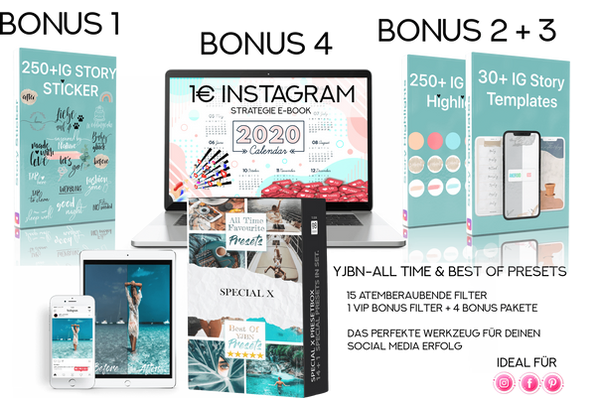
    SPECIAL PRESET X PACKAGE –
    YOUR SOCIAL MEDIA BOOSTER